Task Overview
Tasks are the individual units of work your team delivers — generated from your Plan, owned by a person, and tracked through to done.
Overview
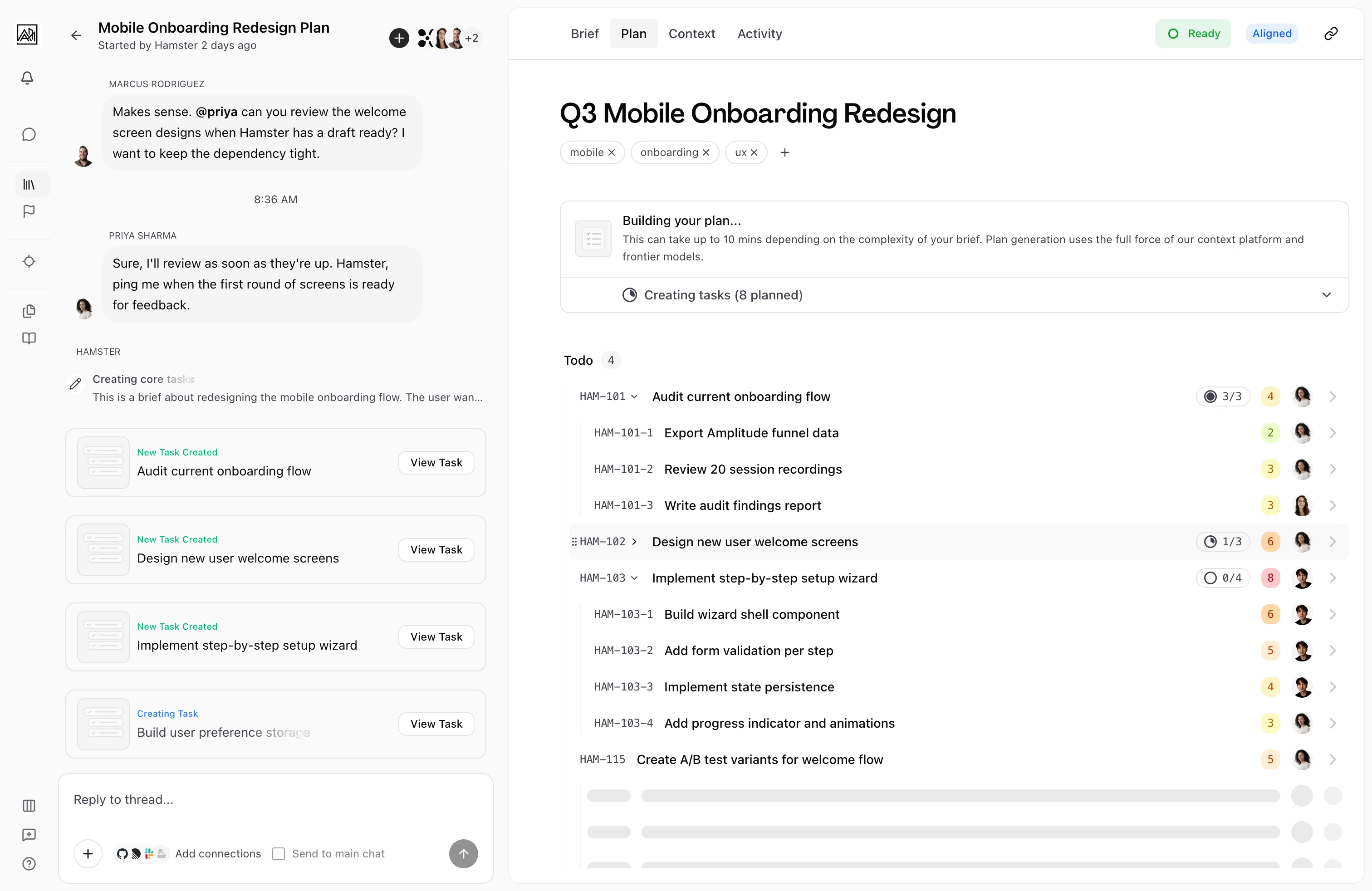
In Hamster Studio, Tasks do not exist in isolation. They are the output of a Plan, which is itself generated from a brief. This means every Task carries context: it knows which Brief it belongs to, what the broader goal is, and where it sits in the Delivery sequence. Tasks represent discrete, actionable pieces of work — not vague to-do items, but scoped deliverables that a team member can pick up and drive to completion.
Each Task has a title, a description (which may include rich formatted content), a status, a priority level, an optional assignee, and an optional due date. Tasks can also have subtasks nested beneath them when the work warrants further breakdown.

How It Works
-
Start with a Brief — You create a Brief to capture the goal of a piece of work. The Brief contains objectives, context, and acceptance criteria. See Creating Briefs for details.
-
Generate a Plan — From the Brief, Hamster Studio generates a Plan: an ordered sequence of Tasks that describes how to deliver the work. Each step in the Plan becomes a task. See Generating Plans for how this works.
-
Work the Tasks — Once Tasks exist, they appear in the Plan tab of the brief. You can view them as a flat list or grouped by status. Each Task can be opened to read its description, update its status, assign it to someone, and manage its subtasks.
-
Track progress — As Tasks move from Todo to In Progress to Done, the Brief shows an aggregate view of completion. When every Task is marked Done, the Brief is effectively delivered.
Key Capabilities
-
Three statuses: Tasks move through Todo, In Progress, and Done. You can change status from the Task list or from inside the Task detail view.
-
Four priority levels: Low, Medium, High, and Urgent. Priority is set by the Plan generator and can be updated manually.
-
Subtask nesting: Every Task can contain subtasks. Subtasks follow the same status model and can themselves be further broken down. The Task row in the list shows a radial progress indicator when subtasks exist.
-
Complexity score: The Plan generator may attach a complexity rating (Low, Medium, High) to a task. This is displayed on the Task detail page and on Task row cards for quick scanning.
-
Dependencies: Tasks can have dependencies on other tasks. The count of dependency Tasks is shown on the Task detail page.
-
Display ID: Each Task gets a short identifier (e.g.,
HAM-001) that appears in breadcrumbs and Task rows. Click the copy button on any Task header to copy the ID to your clipboard. -
Issue tracker sync: When an issue tracker Connection (like Linear) has two-way sync enabled, Tasks sync as issues automatically. Status, priority, and assignee changes flow in both directions. See Connections for available integrations.
-
Instant updates: Task state — status, assignee, priority — updates live across all team members viewing the same Brief without reloading the page.
The Task Lifecycle
A typical Task moves through the following states:
- Todo — Task exists but no one has started it yet. This is the default state when a Task is first generated.
- In Progress — Someone has picked up the Task or it has been assigned to an agent that has begun working on it.
- Done — The work is complete. The Task is counted toward the Brief's overall completion.
You can move Tasks between states at any point. There is no enforced order — a Task can go back from Done to In Progress if rework is needed.
Tips
- If a Task feels too large, use the AI expansion feature from inside the Task detail view to automatically generate subtasks. You can also add subtasks manually.
- The Plan tab shows a "next best Task" indicator — a small dot on the Task most worth picking up next. This is determined by status: the first In Progress Task takes priority, followed by the first Todo task.
- Tasks generated from the Plan inherit context from the brief. The Task description will often contain enough information to act without referring back to the original brief.