Opening and finding chats
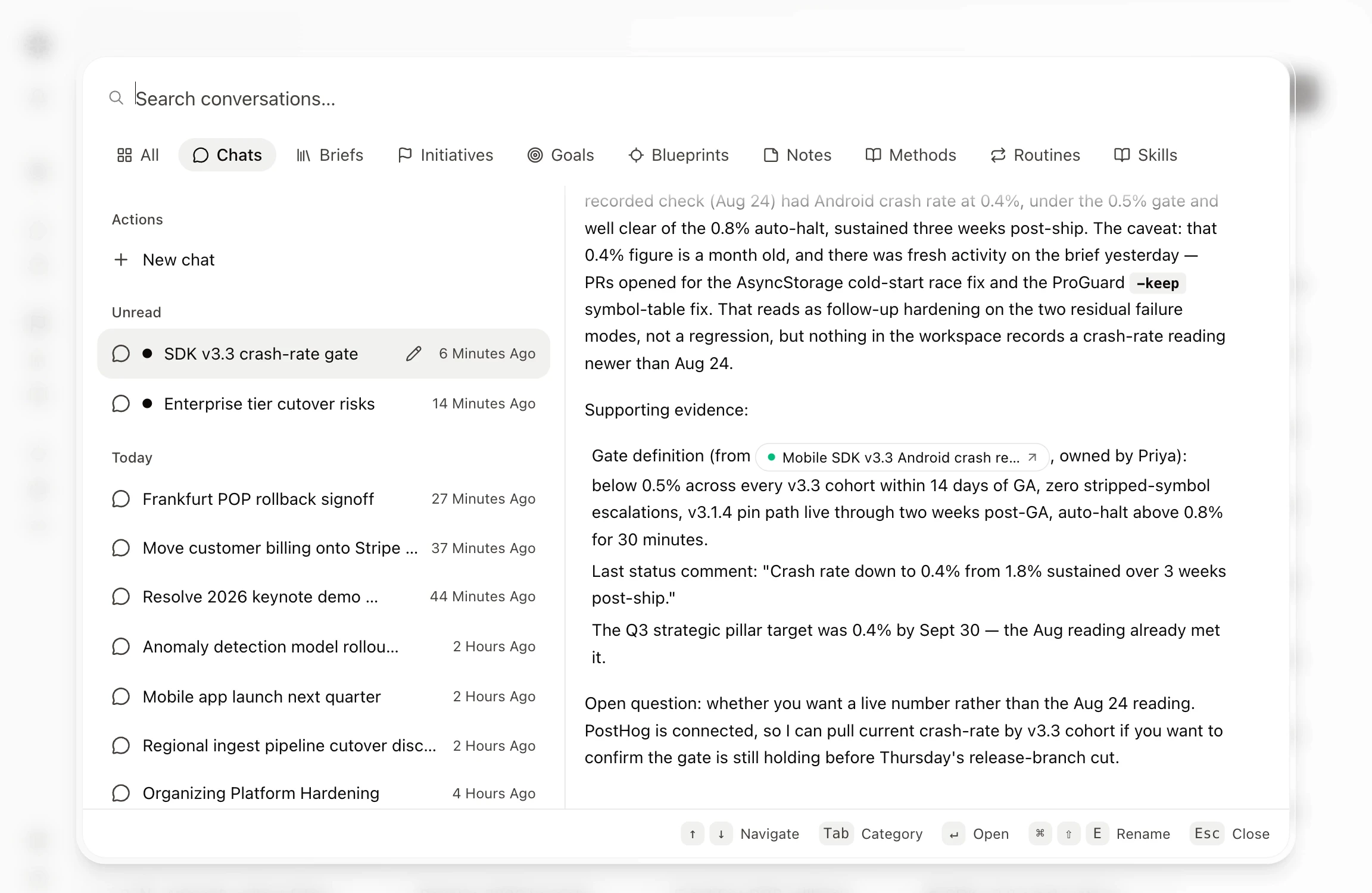
The home page in Hamster Studio is a conversation canvas, not a dashboard. You start a new chat there, and every past chat is one shortcut away in the ⌘K window, which previews each chat before you open it.

How it works
-
Start a new chat — Type in the input on the home page and press Enter. The welcome content fades and Hamster starts replying. From any other page, hover Chats in the sidebar and click
+. -
Return to your latest chat — Click Chats in the sidebar to go back to your most recent standalone chat on the home page. With no chats yet, it starts a new one.
-
Open the ⌘K window on your chats — Press
⌘⇧Kon macOS orCtrl+Shift+Kon Windows and Linux. You can also hover Chats in the expanded sidebar and click the Chat history icon, or click the Chats icon on the collapsed sidebar. -
Preview before you open — Move through the list with the arrow keys. On desktop, the right-hand pane shows the highlighted chat's recent messages, and the chat stays unread.
-
Open it — Press Enter. A standalone chat opens full screen. A chat that belongs to a Brief, Goal, or other item opens on that item's page, docked beside it.
Global Chat across the workspace
Each conversation can use the page currently underneath it as context, and selecting one in the tray does not replace that page.
When fullscreen chat creates a Brief, Blueprint, Note, or Initiative, it opens the new item and returns the conversation to the tray.
Place the tray on the left or right side of the screen. Hamster remembers the side you choose.
On a document's page, Hide chat minimizes the document's chat to a tab in the tray. Reopen it from the tray, from the ⌘K window, or by going back to the document.
To open a chat in the tray over the page you are on, right-click it in the ⌘K window and choose Floating. This option appears everywhere except the home page, where chats always open full screen.
Search everything with ⌘K
Press ⌘K on macOS or Ctrl+K on Windows and Linux to open the same window on All, which searches chats and documents together. Press it again to close the window. Search tolerates abbreviations and typos, and once you type, the matches appear in a single ranked Results list.
- Categories — Tab and Shift+Tab step through All, Chats, Briefs, Initiatives, Goals, Blueprints, Notes, Methods, Routines, and Skills. Your search stays in the box.
- Actions — On All, an Actions group lists workspace commands such as Create Brief and Join Meeting. It shows a few at first. Choose Show all for the rest, or type to match one. Every other category offers a single New action, such as New chat.
- Preview — The highlighted result previews in the right-hand pane. A chat shows its recent messages, and a Brief, Blueprint, Note, or other document shows the document itself.
- Open — Enter opens the highlighted result. Documents open on their page, and chats open as described above.
- Rename — With a standalone chat highlighted, press
⌘⇧E(Ctrl+Shift+Eon Windows and Linux) to rename it in place. Chats that belong to a Brief or other item take that item's name. - Close — Escape closes the window.
Unread and recent conversations
In the Chats category, chats with unread activity come first under Unread, each marked with a dot. The rest follow under Today, Yesterday, This week, and Older, newest first. Other categories use the same date groups.
Starting a new chat
- Next-step nudge — Before your first message, Hamster suggests one next step above the input, with buttons to act on it. The nudge is scoped to you and updates as your work changes.
- Draft until you send — Opening the home page doesn't create an empty chat. The chat is saved when you send your first message or attachment.
What happens in your first chat
Hamster asks, “What are you trying to achieve?” You can answer in one sentence — “I want to build a login app for my lodge” is enough. Hamster reflects the outcome as a Goal in the language you use, confirms it, shapes the Initiative, and drafts the first Brief. You do not need to choose a framework, add a Metric, or learn the workspace hierarchy before continuing.
Where chat-based Goal creation is supported, Hamster saves the Goal. Otherwise, it keeps the confirmed Goal in the thread and continues into the Initiative and Brief.
Finding past chats
- Titles — Hamster titles each chat from its content. Untitled ones show "Untitled conversation". Rename a standalone chat with
⌘⇧Eor the pencil on its highlighted row in the ⌘K window, with Rename chat on its right-click menu, or by double-clicking the title of an open chat window. - Timestamps — Each row shows how long ago the chat was last active, such as "Just Now", "3 Hours Ago", or "2 Days Ago".
- Right-click options — Away from the home page, a chat's right-click menu opens it Full screen or Floating. Chats that belong to a Brief or other item offer Floating only.
- Pinning — Pin a chat with the pin in its window, or with Pin to sidebar on its right-click menu. For a chat that belongs to a Brief or other item, Pin to sidebar pins the item. Pinned chats show a dot when there's a reply you haven't read.
Tips
- A new chat is one click away on any page: hover Chats in the sidebar and click
+. - Check the nudge above the input to catch work that needs your attention. It updates as Brief statuses change or teammates move work forward.
- Before starting a new chat on a familiar topic, press
⌘⇧Kand type a few letters. You may have already made progress on it.
Related
- Messages and attachments — what happens inside a conversation.
- Branching threads — forking a conversation when it takes a hard turn.
- How the AI responds — what happens after you send a message.
- Creating Briefs — turning a conversation into a structured Brief.
- Activity timeline — conversation history within a Brief.