Sending messages
Send and receive messages in a persistent, real-time chat thread — drop in .fig files, paste URLs, mention teammates, and watch responses stream in live.
Overview
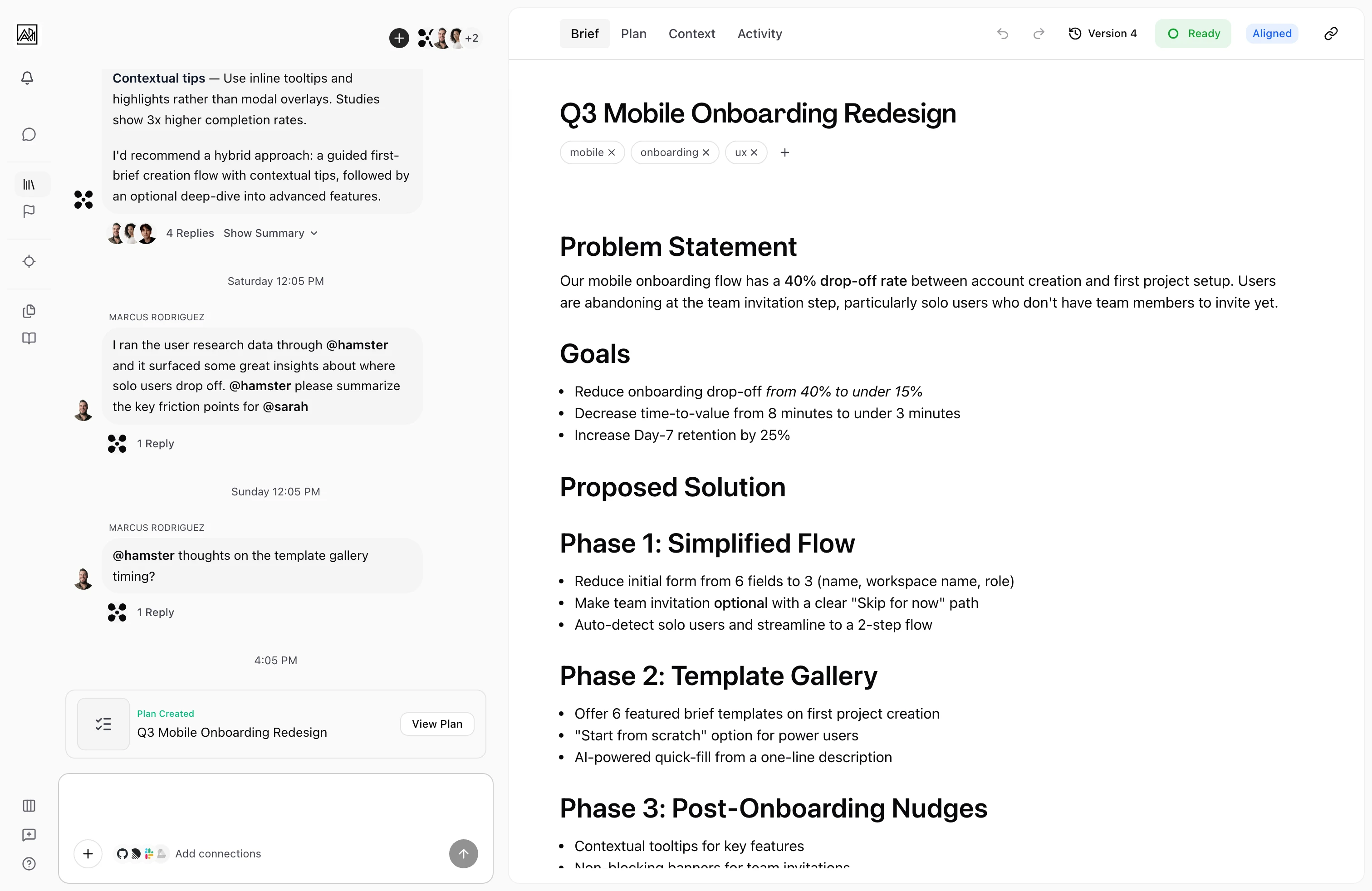
Conversations in Hamster Studio happen inside threads — persistent message streams that save automatically and update in real time. You type in the input at the bottom of the screen, send your message, and the thread shows both your message and the AI's reply. Multiple teammates can participate in the same thread, and the AI agent shows up as its own participant alongside humans.
The composer is built for the way you actually share context: paste a Figma URL, drop in a customer-call PDF, attach an image, or @mention a teammate — all from the same input.

How It Works
-
Type your message — Click the input at the bottom of the conversation. Plain text and rich text formatting are both supported, and the input expands as you type.
-
Attach files or paste URLs — Use the attachment button (the plus icon) to attach files. Paste a URL directly into the input and the thread renders a preview card automatically. Pasted text content over the threshold is converted to an attachment so the message body stays readable.
-
Mention people or
@hamster— Type@followed by the name or part of an email. The picker stays accurate as you narrow it —@h→@ha→@hamalways keeps Hamster visible. Mentioned teammates are added to the thread automatically before they're notified, so the deep link in their notification lands on the right item. -
Send — Press Enter to send, or Shift+Enter to add a new line. Your message appears on the right of the thread instantly while it's being saved.
-
Receive a reply — The AI's response streams in below your message, labelled with the AI's name and avatar.
-
Reply to a specific message — Hover any message and click the reply icon to mark your next message as a reply, with a context indicator shown above the input.
File and URL Support
| Type | What you get |
|---|---|
| Images (paste or upload) | Square thumbnail in a grid above the message; tap to open a full-size lightbox. Pasted images survive submit and stay attached when the message lands. |
.fig files | Uploaded as a chat attachment with a Figma icon and structured description. The AI reads the design context inside the file. |
| Uploaded, extracted, and indexed for the AI to reference. | |
Markdown (.md) | Accepted as a chat upload. Useful for pasting in long specs, transcripts, or research. |
| Pasted Figma URL | Rendered as a preview card with thumbnail and structured content from the Figma REST API. Public files work unauthenticated; private ones use your Figma OAuth connection. |
| Pasted URL (other) | Standard URL preview card with title, description, and image, fetched in the background. |
| Pasted long text | Above the threshold (about 2000 characters), pasted text is converted to an attachment so the message stays readable. |
You can also send an attachment with no text — useful when you want the AI to look at a file or link without prefacing it.
Paste a half-formed thought and Hamster pulls the scattered context — a customer-call transcript, a linked ticket, an existing Blueprint — into one synthesized answer.
Mentions
The mention picker is consistent everywhere: the chat textarea, the rich text composer, and the mention popover all share one resolver, so what you click is always what gets submitted.
@hamsteraddresses the AI directly. The agent always responds when mentioned, even when you also mention a person in the same message.@teammateadds the person to the thread as a participant and sends them a deep-link notification.- Sticky context — once you mention someone (or Hamster), follow-ups in the same thread stay addressed to them without re-mentioning. Switching threads resets the context.
- The picker filters by name or email and supports keyboard navigation: arrow keys, Enter to confirm, Escape to cancel.
For more on what happens after you mention someone — notifications, deep links, dedupe — see Mentions and Notifications.
Key Capabilities
- Rich text display: AI responses render as formatted markdown — headings, bullets, code blocks, bold, inline code. Your messages display as plain text with whitespace preserved.
- File attachments: Images render as a square-thumbnail grid; documents render as compact preview cards. Click an image to open a lightbox.
- URL previews: Pasted URLs render preview cards below the message. Figma URLs get a thumbnail and structured rendering. Previews load lazily as messages scroll into view.
- Reference link pills: When the AI references a Brief, Goal, Initiative, or Task inline, it renders as a tappable inline pill that navigates straight to the referenced item. Goal references show live status dots fetched from the workspace. Self-references — pills pointing at the page you're already on — are hidden to keep the thread clean.
- AI participant avatar: The Hamster AI shows up with its own avatar throughout the thread — in participant headers, reply indicators, tool-call cards, and annotation messages.
- Typing indicators: When a teammate or the AI is composing, a typing indicator appears so you know a reply is on the way.
- Queued messages: If you send messages faster than the AI processes them, the extras dock above the input as a queue. Cancel any queued message before it's processed.
- Participant avatars: Each message from a teammate shows their avatar in the bottom-left of the message group. Consecutive messages from the same person are grouped under a single avatar.
- Stuck-chat recovery: If a chat appears to hang because of a service hiccup, the next message recovers the lock automatically and stale items are filtered out so the transcript stays clean.
- Pinned input on getting started: On the first-run getting-started chat, the input stays pinned to the bottom so suggested prompts above it don't reflow when you start typing.
- Reactions with Slack: React to any message with emoji reactions that sync with Slack when a Slack connection is active. Your emoji choice persists across sessions and is visible to all thread participants.
- Skill invocation tokens: When the AI invokes a skill during execution, a compact skill token appears in the message, showing the skill icon and name. Click to learn more about what skill was used and expand to see details if available.
Tips
- Mention someone with
@nameto bring them in. They get a notification, and they're added to the thread before the notification is sent so the deep link works. - Paste a link — Figma, Notion, a competitor URL — to share context. The AI uses the rendered content when answering, so you can ask it to work with the link directly.
- If the AI's response references a Brief, Goal, or Task, tap the reference pill in the reply to jump there directly.
- Drop in a
.figfile or a Figma URL when you want the agent to ground a Brief or Plan in real design context, not a description of design. - React to messages with emoji to give quick feedback. Emoji reactions sync with Slack if connected, so your reactions are visible on both sides.
- Watch skill invocation tokens during Plan generation and Delivery to understand which team capabilities the agent is relying on.
Related
- AI Responses — How the AI generates and streams replies
- Thread Branches — Forking a message into a focused sub-thread
- Mentions and Notifications
- Context Documents — Attaching documents to Briefs for AI context