Context Documents
Give the AI everything it needs to understand your project by attaching supporting files and URLs to your brief.
Overview
Context documents are files and web pages you attach to a Brief to give the AI assistant richer background information. When you upload a specification, a research report, a design document, or any other supporting material, Hamster processes the content and connects it into your workspace Context Graph.
That means Hamster can use this context across chat, document generation, and Plan generation while traversing related Briefs, Initiatives, Tasks, and connected tools to pull in relevant supporting information.
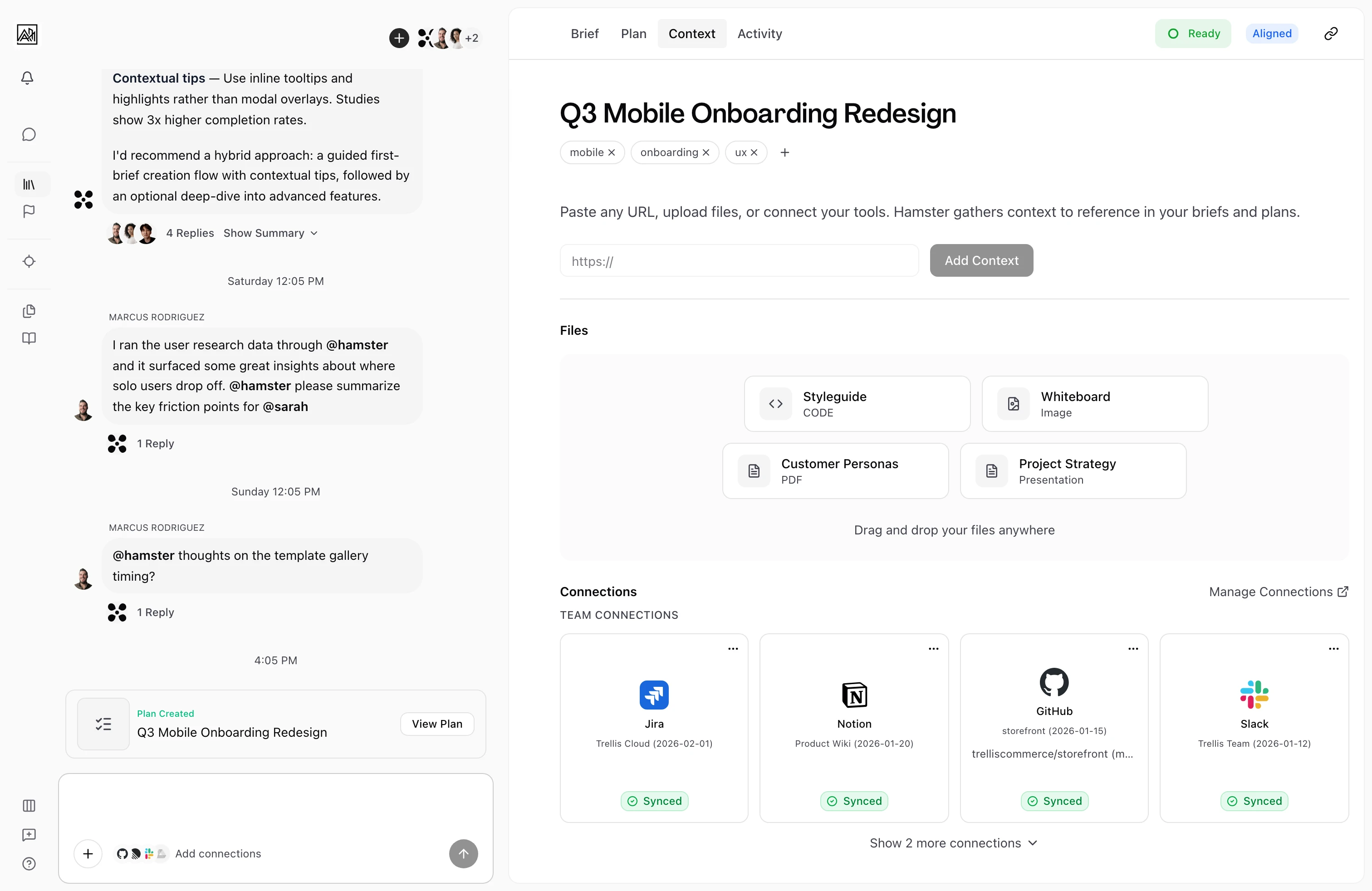
Context documents are added from the chat inside any open brief, and every uploaded file is listed on the Files page under Knowledge in the sidebar.

How It Works
Uploading Files
-
Open the chat — Inside any Brief, open its chat.
-
Attach your files — Drag and drop files onto the chat input, or click the + (Add files) button to pick them from your file system, then send your message. You can attach multiple files at once.
-
Wait for processing — Each uploaded file is processed automatically: uploading, reading the content, analyzing it, and making it available to Hamster. A status indicator on each document card shows where it is in this process.
-
Files are ready — Once processing reaches the "ready" state, the document is fully indexed and available to the AI when you chat or generate a plan.
Once processing reaches ready, the Files page lists every file attached to the Brief — the same uploaded sources Hamster can search and cite in chat.
- Remove a file — On the Files page, open the file's menu and choose Remove.
Adding URLs
You can also add web pages as context. Paste a URL into the Brief's chat (the AI will handle extraction) and the page content is saved as a URL document.
Team Connections
Your team's active Connections to external services (such as GitHub, Linear, Notion, Google Drive, and others) are listed on the Connections page under Knowledge in the sidebar, where you manage them. These Connections make source data available to the AI across all briefs.
Connection tiles show which sources are available to Hamster; they do not imply one retrieval mechanism. Some sources are synced or indexed into the Context Graph. Jira and Google Drive are checked live when Hamster needs current context.
Supported File Types
Hamster accepts a wide range of file formats:
| Category | Formats |
|---|---|
| Documents | PDF (up to 50MB), Word (.doc, .docx, up to 25MB), plain text (.txt, up to 10MB), Markdown (.md, up to 10MB) |
| Spreadsheets | Excel (.xlsx, up to 25MB), CSV (up to 25MB) |
| Presentations | PowerPoint (.pptx, up to 50MB) |
| Design files | Figma (.fig) — thumbnail, structure, and design details extracted |
| Images | JPEG, PNG, GIF, WebP, SVG (up to 20MB) — OCR enabled |
| Code | JavaScript, TypeScript, Python, Java, C++ (up to 5MB) |
| Data formats | JSON (up to 5MB), XML, YAML |
| Audio | MP3, WAV, MP4 audio (up to 100MB) — transcription enabled |
| Video | MP4, AVI, MOV (up to 500MB) — transcription enabled |
Key Capabilities
- Multi-file upload: Select or drag multiple files at once. Each processes independently.
- Processing status: Each document shows a live status indicator so you know when it's ready for Hamster to use.
- Content preview: Document cards show a truncated preview of the extracted text content so you can confirm the right information was captured.
- OCR for images: Images are processed with optical character recognition, extracting any text they contain.
- AI image descriptions: When you upload an image, Hamster generates a plain-language description of what the image shows. This description is used everywhere — the chat assistant, Plan generation, and search — so the content of the image contributes to context.
- Figma file support: Upload
.figfiles directly. Hamster extracts a visual thumbnail, structure (page names, component hierarchy), and design details from the file. The thumbnail appears on the document card; the extracted content feeds into Hamster's context for Briefs and plans. - Audio and video transcription: Audio and video files are transcribed automatically, making spoken content searchable and available to Hamster.
- Team Connections: Shared integrations with external tools appear on the Connections page and contribute to the AI's Knowledge for all Briefs in your workspace.
- Graph-connected retrieval: Uploaded context is not treated as isolated files. Hamster can traverse related entities in your workspace graph to pull the most relevant context for your current question or request.
Tips
- Attach context documents before generating a plan. The Plan generator draws on all indexed context for the Brief, producing more detailed and accurate Tasks when it has supporting material.
- In the Brief's chat, attach the source-of-truth documents for a project: the existing product spec, the relevant research, or the design brief. This way the AI can reference them directly without you having to paste excerpts into the chat.
- For large PDFs, processing may take a minute. You will see the status update in real time on the document card.
- If a document fails processing, the card shows a red error indicator. Try re-uploading the file or check that it is not password-protected.
- Your team's Connections to external tools are set up and listed on the Connections page. These are shared across all Briefs — you do not need to re-attach the same Connection for each project.
Related
- Files — Browse and search uploaded material across the workspace.
- Context Graph
- Connections Overview
- Generating Plans
- AI Assistant
- Editing Briefs