Editing Briefs
Write, refine, and deliver — all from one workspace, with the AI chat alongside the document and a deliver button that morphs into a PR badge once the work ships.
Overview
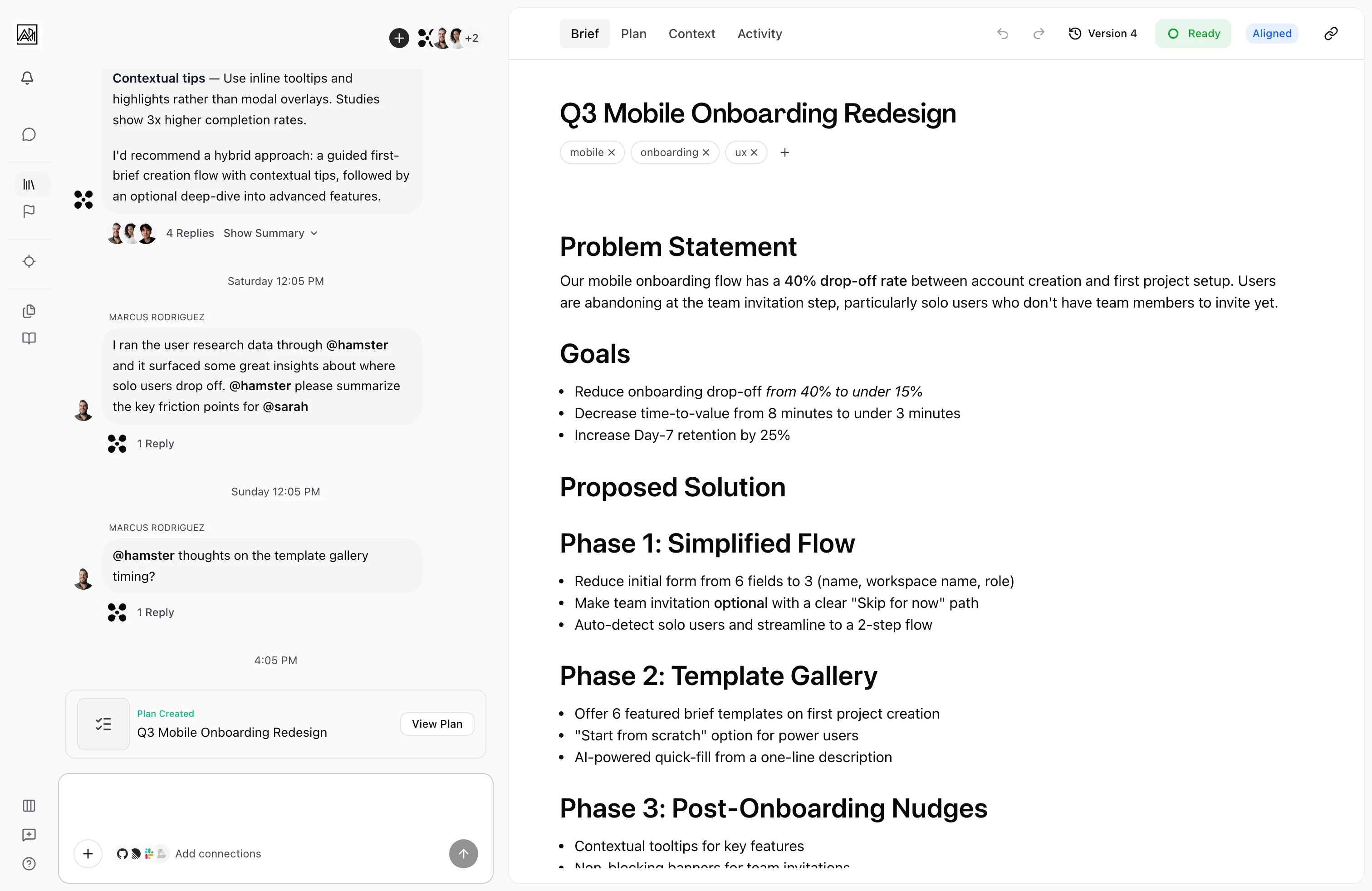
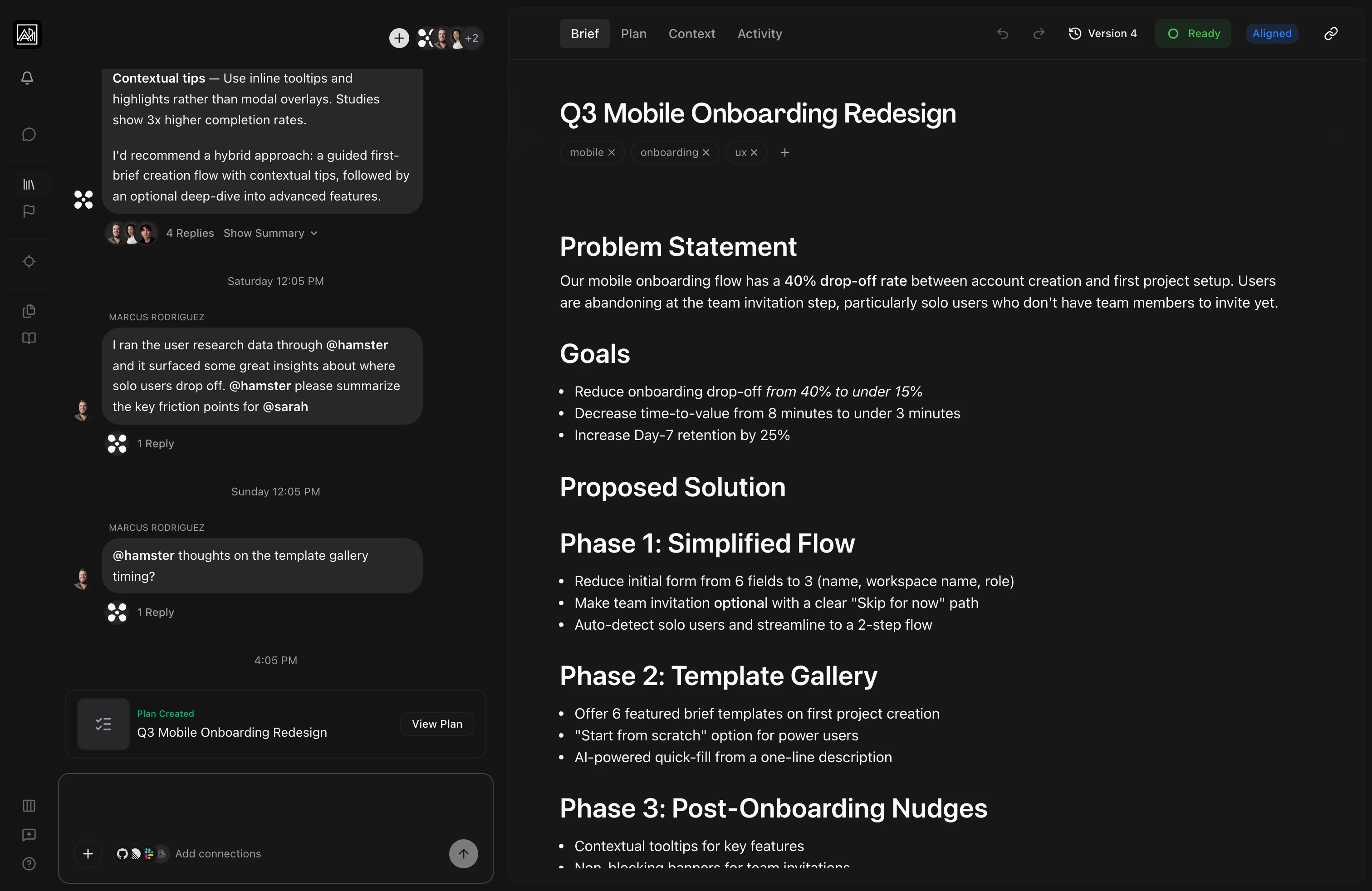
The Brief workspace pairs a rich text editor on one side with the AI chat panel on the other. As you write, you can ask the AI to expand a section, suggest requirements, or critique the scope — and it works with the actual content of your Brief, not a summary. Multiple teammates can edit the same Brief at the same time, with cursors and changes appearing live.
Keep the Brief focused on the business-facing what and why. Open its Technical Spec when architecture or implementation decisions need their own space before Plan generation.
Once the Brief is sharp enough to act on, you generate a Plan, hit Deliver, and watch the deliver button track the work all the way to a pull request — without leaving the page.
How It Works
Write and refine
-
Open a Brief — Click any Brief from the Briefs list. The AI chat opens on the left, the document on the right.
-
Write and edit — Click into the document and type. The editor supports headings, lists, bold, italic, links, images, and the rest of the standard rich text set. To refine a specific passage, highlight the text, click the Refine button, and describe what you want to change. The AI rewrites that section in-place while preserving the rest of the document.
-
Ask the AI for help — In the chat panel, ask for a rewrite, expansion, or critique. Mention
@hamsterto address the AI directly, or@teammateto bring a person into the thread.
Context, plan, and deliver
-
Drop in context — Paste a Figma URL or upload a
.figfile and the agent reads the design context. Drop a PDF or markdown file and it gets indexed for the AI to reference. -
Switch tabs — The document panel has four tabs: Brief (the editor), Plan (parent Tasks and subtasks), Context (attached files), and Activity (alignment votes and history). Brief metadata pills show the brief's tags, owner, and linked Initiatives at the top of the document.
-
Generate a Plan — From the Plan tab, generate a Plan from the Brief body. Progress streams live in the chat as a card; the plan-generation card stays in sync even if you navigate away mid-flight. Once plan generation completes, the Plan tab displays a Deliver with Hamster Cloud button that opens the delivery dispatch interface.
-
Deliver — When the Plan is ready, click Deliver with Hamster Cloud. Pick a repo and branch, optionally toggle "Auto-open draft PR," and confirm. The deliver split-button shows delivery progress, then morphs into a PR-state badge — "Draft #42," "Merged #42" — that clicks straight through to GitHub. The Delivery thread opens in the Plan tab so you can watch the agent work in real time.
When a discussion in chat lands on something worth keeping, ask Hamster to fold it into the Brief — it weaves the live conversation back into the document body.
Assign ownership from the Brief header; the teammate is notified in-app when the Brief is assigned to them.
The Workspace Layout
The Brief workspace is two panels:
- Left panel — AI Chat: The conversation thread for this brief. Use it to discuss, draft, and refine. Long replies and Plan generation move into child threads automatically so the main thread stays readable.
- Right panel — Document: The Brief content and its tabs (Brief, Plan, Context, Activity).
Hide either panel using the column visibility controls. On mobile, the chat appears as a tab inside the document view.
- Real-time collaboration: Any number of people can type in the same brief. Changes merge cleanly. Each person's cursor is colour-tagged with their name.
- AI knows the document: The chat reads your Brief automatically. You don't paste content into chat — the agent already has it.
- Refine in place: Highlight text in the brief and click Refine to rewrite that passage. The AI focuses on just that section while preserving the rest of the brief intact.
- Mentions: Type
@to mention a teammate or the Hamster AI. Mentioned teammates are added to the thread and notified. - Editable description: Edit the Brief's short description directly beneath its title.
- Attachments grounded in the Brief: Files you upload (
.fig, PDF, markdown, images) and URLs you paste are extracted and indexed; the agent uses them when answering, drafting, or generating a plan. Pasted images survive the round trip and persist on the message. - AI image descriptions: Images placed in the Brief body are described in the background, and the description flows into chat answers, Plan generation, and search.
- Metadata and tags: The brief header displays tags, owner, and linked Initiatives as clickable pills. Edit tags directly from the metadata section to organize and filter briefs.
- Auto-generated description: As you write, the Brief's short description (the summary on the card in the list) is updated based on the content.
- Plan generation from chat or the Plan tab: When you ask the AI to Plan from chat, the flow runs in its own child thread with a live progress card. Plan-gen and Delivery cards land in whichever chat surface you triggered them from.
- State-aware Deliver button: One button covers the whole arc — "Deliver," "Delivering…," "Draft #42," "Merged #42" — and the click target morphs to match. No separate Delivery tab; the state lives where you clicked it.
- Opt-in draft PRs: Tick "Auto-open draft PR" in the deliver dialog to have the PR opened automatically. Leave it off and the Plan tab gives you a CTA that deep-links to a pre-filled GitHub compare page.
- Reviewer read-only: Teammates with the Reviewer role see the Brief as fully read-only — no greyed-out controls, no cursor leaking outbound. They can still cast alignment votes and watch the document.
- Recovers from interruptions: If you navigate away during Plan generation or Delivery, the cards still reach a terminal state when you come back. No more cards stuck on "in progress" forever.
- Initiative linking nudge: When a brief is tagged with an Initiative, a brief card appears suggesting to link it. Click to update the metadata and link the brief to the Initiative thread.
Tips
- Structure your Brief with headings. The AI uses document structure to understand sections and gives more precise responses when you ask about a specific part.
- Drop supporting material as context documents instead of pasting it into the Brief body. The Brief stays readable; the AI still has access to the details.
- Move the Brief through statuses (Draft → Refining → Shipping) as you progress so the team can see at a glance what's moving.
- Ask the agent in chat to update the Brief status, log alignment, or pull a related Brief by tag. The agent has tools for all of those and will keep the document in sync.