Security
Control how you sign in, protect your account with a second factor, and manage connected sign-in methods.
Overview
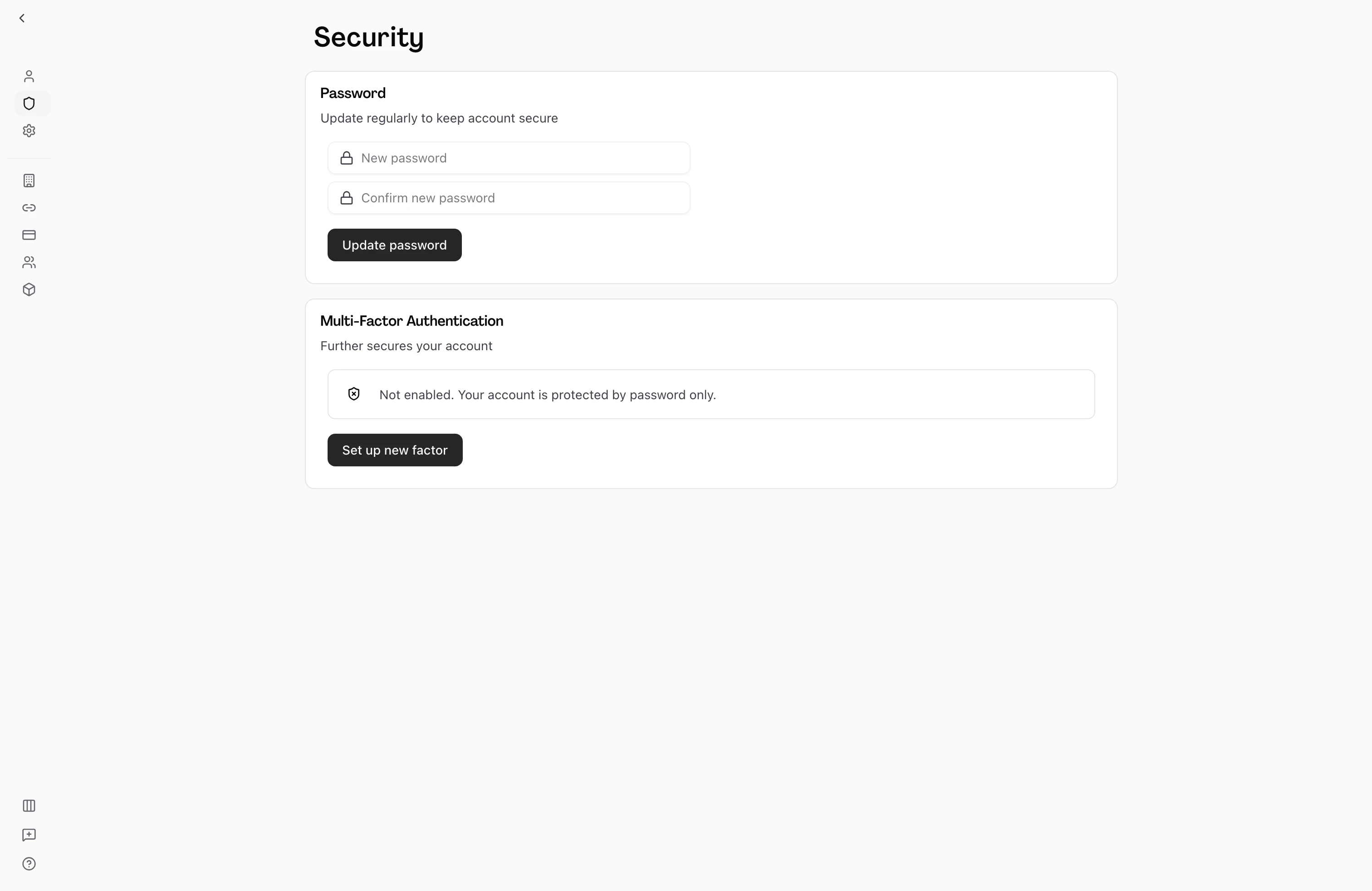
The Security section gives you control over your authentication credentials. From here you can sign in with email and password, enroll in multi-factor authentication (MFA) using a TOTP authenticator app, and link or unlink social sign-in providers like Google, GitHub, or Microsoft. These settings apply to your personal account and do not affect other team members.

How It Works
-
Open security settings — Navigate to Personal Profile in your settings menu, then select Security. The URL pattern is
/home/[your-team]/personal-settings/security. -
Change your password — If your account has an email address, the Update Password section appears. Enter a new password and confirm it. Hamster updates the password directly; if your current session is too old for this sensitive action, the form asks you to reauthenticate before retrying.
-
Set up multi-factor authentication — In the Multi-Factor Authentication section, click "Set up MFA". Give the factor a name (e.g., "Work phone"), then scan the QR code with your authenticator app (Google Authenticator, Authy, 1Password, or any TOTP-compatible app). Enter the six-digit code from your app to verify and activate the factor.
-
Manage MFA factors — Your enrolled factors appear in a table showing the factor name, type (TOTP), and verification status. To remove a factor, click the remove button on its row and confirm. You must have at least one sign-in method remaining after removing a factor.
-
Link or unlink social accounts — The Linked Accounts section shows which providers are connected to your account (email, Google, GitHub, Microsoft). You can link additional providers or unlink ones you no longer use, as long as you keep at least one active sign-in method.
Sign-In Methods
You can sign in to Hamster Studio in several ways:
- Email and password. Standard email-based sign-in. Set or update your password from this page. If you forget your password, use the "Forgot password" link on the sign-in page.
- Sign in with Google. Available on the sign-in and sign-up pages, plus Google One Tap on marketing pages for one-click access. Use the Linked Accounts section to add Google to an existing email account, or to remove it.
- Other social providers. GitHub and Microsoft sign-in appear on the sign-in screen and in Linked Accounts.
If you signed up with Google and want the option to also use email and password (for example, when an authenticator app is your primary security key), use the "Link email/password" option in Linked Accounts to add password-based sign-in to the same account.
Key Capabilities
- Password update: Change the password associated with your email sign-in directly from Security. A stale session may require reauthentication before the update can complete.
- TOTP multi-factor authentication: Add a time-based one-time password factor using any TOTP authenticator app. You can register multiple named factors (e.g., one per device).
- MFA factor management: View all enrolled factors, see their verification status, and remove factors you no longer need.
- Linked accounts: Connect or disconnect social sign-in providers (Google, GitHub, Microsoft) from your account, giving you flexibility in how you sign in.
- Safari-friendly MFA: MFA verification works reliably in Safari. After you submit your code, the page commits the new session and routes you forward without getting stuck on the verification screen.
MFA Enrollment in Detail
When you add a new MFA factor:
- You give the factor a friendly name so you can identify it later (e.g., "iPhone Authenticator").
- Hamster displays a QR code. Open your authenticator app, add a new entry, and scan the code.
- Your app generates a six-digit rotating code. Enter it in the verification field.
- Once verified, the factor is marked as active and required at future sign-ins.
Your authenticator app stores a secret linked to this code. If you lose access to your device, you will need to use an alternative sign-in method or contact your workspace administrator.
Password Recovery
If you forget your password, use the "Forgot password" link on the sign-in page. Enter the email address on your account and Hamster sends a password recovery link.
For privacy, the recovery flow always responds with the same generic confirmation regardless of whether the email is on file — this prevents anyone from probing the system to discover which addresses have accounts. If you don't receive an email within a few minutes, double-check the address and try again, or reach out to your workspace admin.
Connecting Third-Party Tools
Connecting integrations like Slack, Linear, Figma, Notion, Jira, and Google Drive happens in Workspace Settings → Connections, not in this page. Those flows open in a popup window so you don't lose your place in the Brief or document you were editing — the popup completes the auth, posts back to Hamster, and closes itself. If popups are blocked, the flow falls back to a same-window redirect.
If a connect attempt fails (the popup closes early, a browser extension blocks the redirect, etc.), the dialog asks you to try again. The retry succeeds in the vast majority of cases.
Tips
- Name each MFA factor after the device it's on (e.g., "Personal phone", "Work laptop Authy"). This makes it easy to identify and remove factors when a device is lost or replaced.
- If you sign in with Google or GitHub and want to also be able to sign in with email and password, use the "Link email/password" option in the Linked Accounts section to add that method.
- Keep at least two sign-in methods connected to your account so you're not locked out if one becomes unavailable.
- If MFA verification ever appears to hang in Safari, give it a couple of seconds — Safari is slower than other browsers to commit the post-verification session, and Hamster auto-routes you forward when the session lands.