Billing
View your team's current Plan, start or change a subscription, and manage payment details.
Overview
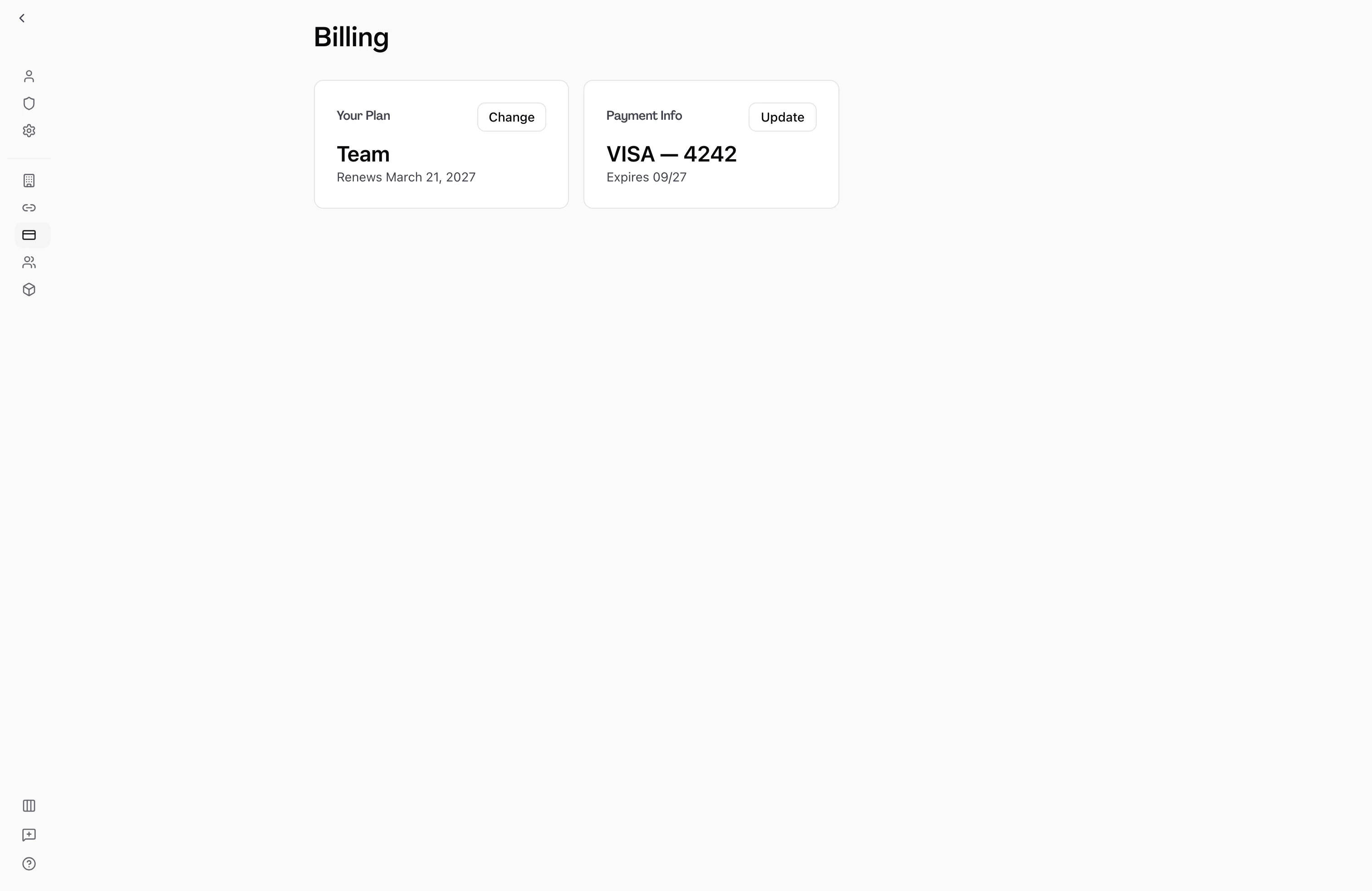
Billing in Hamster Studio is managed at the team level. Each team has its own subscription, Plan, and payment history. Team members with the billing.manage permission can access the Billing page, view the current Plan, start a new subscription, and open the billing portal to update payment Methods or download invoices. Members without this permission see a notice that they cannot manage billing.

How It Works
-
Open billing — In your team's settings, select Billing. The URL pattern is
/home/[your-team]/billing. Only team members with billing management permissions can access this page. -
Choose a Plan — If your team has no active subscription, the Plan picker displays the available plans. Select the Plan and billing interval (monthly or annual) that fits your team, then proceed to checkout.
-
Complete checkout — After selecting a Plan, an embedded checkout form opens. Enter your payment details and confirm. Once payment is processed, your subscription activates immediately.
-
View your current subscription — If your team already has an active subscription, the page shows the current Plan name, pricing, and billing interval. Lifetime orders (if applicable) display in a separate card.
-
Access the billing portal — If you have a billing management permission and a billing record exists for your team, a "Manage billing" option opens the billing portal in a new window. From there you can update your payment Method, view past invoices, change your Plan, or cancel your subscription.
Available Plans
Hamster Studio offers three Plan tiers for teams:
| Plan | Description | Creator seats |
|---|---|---|
| Free | For individuals exploring Hamster Studio | 1 |
| Team | For teams shipping with shared ownership | Per seat, no cap |
| Enterprise | For larger organizations needing compliance, SSO, and dedicated support | Per seat |
Team and Enterprise are billed per creator seat, with no seat cap. Team is $40 per creator/month ($33.33/month billed annually); Enterprise is $200 per creator/month ($166.67/month billed annually), with checkout through our team. All Plans include unlimited viewer seats.
Plan Features at a Glance
Free
- Unlimited viewers
- 1 creator
- 1 team
- 1 connected repository
- 10 Briefs
- Initiatives
- Frontier models
- Community support
Team
- Everything in Free +
- Unlimited Briefs
- Cloud Agents
- Up to 100 repositories per connection
- Strategies and goals
- Skills and methods
- Team-level visibility
- Email support
Enterprise
- Everything in Team +
- Unlimited teams
- SSO & advanced security
- Dedicated success manager
- SLA & priority support
Activation Paywall
When you create your first Brief, Blueprint, Initiative, or Routine, the system checks whether your account has an active subscription or trial:
- Free plan users see the activation modal after their first qualifying artifact has already been created. The prompt is claimed once per user per workspace, so concurrent tabs, reconnects, later sessions, and dismissal do not make it reappear.
- Trial users proceed without interruption.
- Paid subscribers proceed without interruption.
The prompt never blocks or rolls back artifact creation. Dismissing it consumes that user's one-time claim for the workspace.
Repository Limit Upsell
The repository picker in Knowledge > Connections limits how many repositories Hamster indexes. The limit applies to GitHub, GitLab, Bitbucket, and Cursor Origin:
- Free plan — 1 repository for the whole workspace, counted across every code connection.
- Team and Enterprise plans — Up to 100 repositories per connection.
If you're on the Free plan and try to connect more repositories than that, an upsell modal appears. It explains the repository limit and offers a one-click upgrade flow to the Team plan. The upgrade uses a popup that falls back to a same-window checkout if pop-ups are blocked in your browser.
If your Free workspace already has more than one repository connected, you keep them. You can swap one for another, but you can't add more.
Permissions
Billing access is gated by the billing.manage permission within your team. If you need access to billing but cannot see the page, ask a team owner to grant you the billing management role. Team admins are granted billing management by default.
Only the team owner can change team ownership. Billing access does not require ownership — it is a separate permission that owners can grant to other members.
Brief Quota Notifications
When your team hits its monthly Brief cap, every member with the billing.manage permission gets a transactional email letting them know — once per period, not per attempt. The email includes a one-click link straight to the team's billing page so the right person can decide on an upgrade.
A few details worth knowing:
- Team-scoped, not user-scoped. The teammate who triggered the cap may not be the person who can upgrade. The notification goes to whoever holds
billing.manage, not the person who hit the wall. - Once per cycle. Concurrent attempts collapse into a single email. Two engineers hitting the cap at the same time produces one notification, not two.
- Cleared automatically. Upgrading the subscription, completing checkout, or rolling into a new monthly cycle resets the notification — the next time the team hits the cap, it fires again. You don't need to clear anything manually.
- Doesn't block creation. If the email service is briefly unavailable, Brief creation still returns the upgrade modal to the user who tried. The notification is best-effort; the paywall response is the canonical signal.
Tips
- Annual billing saves roughly two months compared to monthly billing on the Team plan. Switch to annual in the billing portal at any time to apply the discount at your next renewal.
- If your team is trialing a Plan, the trial eligibility is based on whether your team has previously been a paying customer. First-time teams may see a trial option during checkout.
- To cancel a subscription or get a refund, open the billing portal and follow the cancellation flow. Cancellations take effect at the end of the current billing period.
- Make sure at least one team member with
billing.managehas a deliverable email on their profile. The cap notification skips members without one — and a team with no reachable billing manager won't get the email at all.