Preferences
Adjust how Hamster Studio looks and behaves for you personally.
Overview
Preferences let you customize the Hamster Studio interface to suit how you work. Settings you change here apply only to your account — they don't affect what other team members see. Preferences include your choice of interface theme, which side chat sits on (left or right), and where mention notifications reach you: in Hamster, in Slack, or by email.

How It Works
-
Open preferences — Navigate to the settings menu and select Preferences.
-
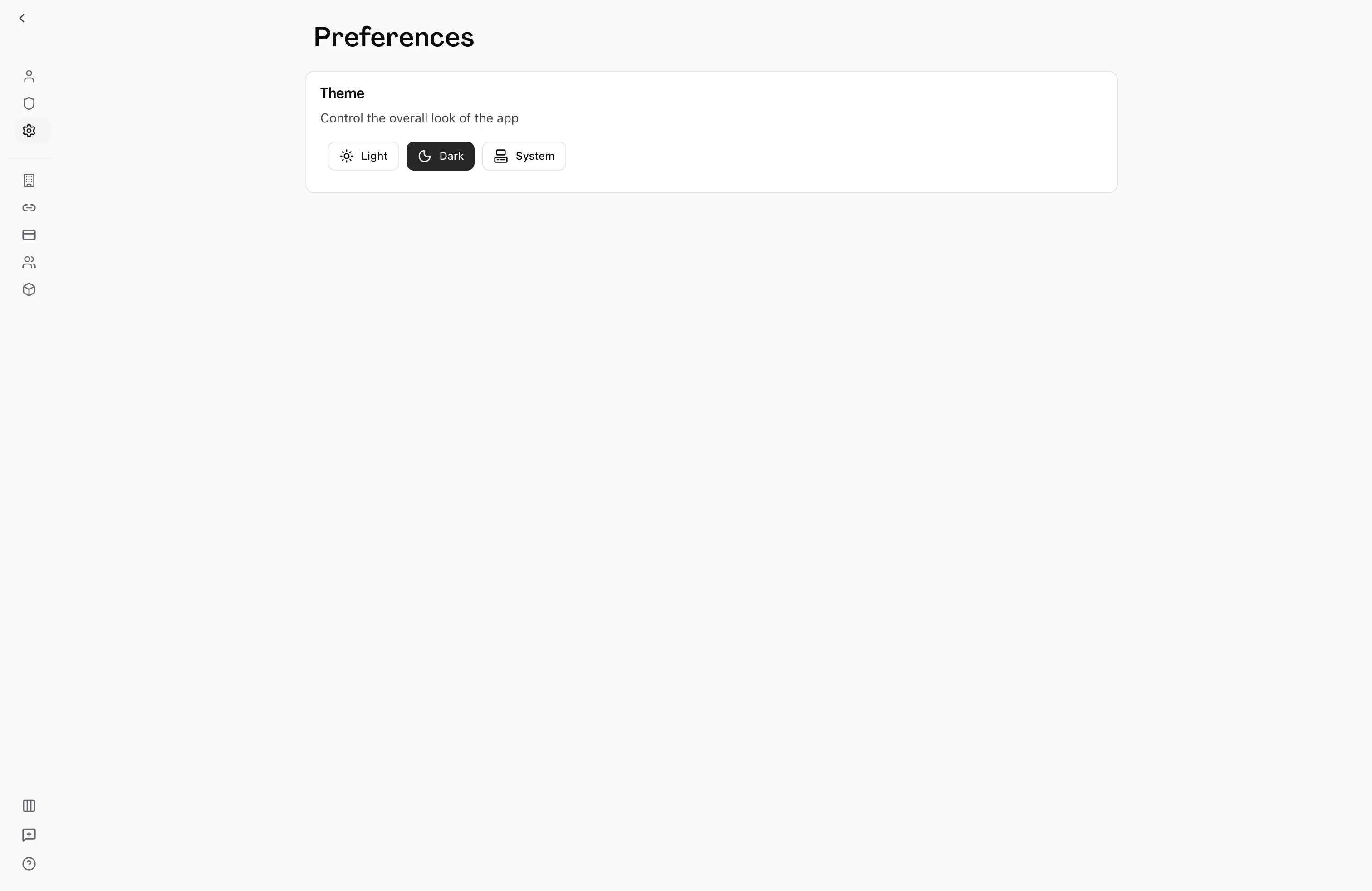
Choose a theme — The Theme section presents three options: Light, Dark, and System. Click the button for the theme you want to use. The change applies immediately — there is no save button.
-
Choose a thread position — In the Thread position card, pick Left or Right to pin chat to that side when it's docked or floating. The change applies immediately, and the Thread Left / Thread Right item in the sidebar's Display menu switches the same setting.
-
Choose where mentions reach you — In the Notifications card, turn the In-app, Slack, and Email switches on or off for each kind of mention.
Theme Options
| Option | What it does |
|---|---|
| Light | Uses a light background with dark text throughout the interface. |
| Dark | Uses a dark background with light text throughout the interface. |
| System | Follows your operating system's current appearance setting, switching automatically when you change it at the OS level. |
Mention Notifications
The Notifications card lists two kinds of mention notification, each with a switch per channel. The defaults are:
| Notification | In-app | Slack | |
|---|---|---|---|
| Mentions from teammates | On | On | On |
| Mentions from Hamster | On | On | Off |
Mentions from teammates covers a workspace member mentioning you. Mentions from Hamster covers Hamster mentioning you in its own replies.
Every switch can be changed, and they're saved per workspace. The Slack column appears only when your workspace has the Slack connection installed.
- In-app puts the mention in your notification center.
- Slack sends it to you as a direct message from Hamster in Slack.
- Email sends it to the address on your account.
Turn In-app off and leave Slack on, and the mention skips your notification center and reaches you in Slack; if your workspace has no Slack app connected, it arrives in Hamster instead so you don't miss it. If you're active in the thread when the mention is delivered, Hamster doesn't notify you on any channel.
Tips
- "System" is the recommended option for most users — it matches your OS preference and switches automatically between day and night without any manual action.
- If you work in a shared environment (e.g., presenting from your screen), switching to Light mode temporarily makes the interface easier to read on a projector or in a bright room.
- Your theme choice is stored with your account. If you sign in from a different browser or device, Hamster will apply your saved preference there too once the page loads.